Free to download. Free to run the everyday work.
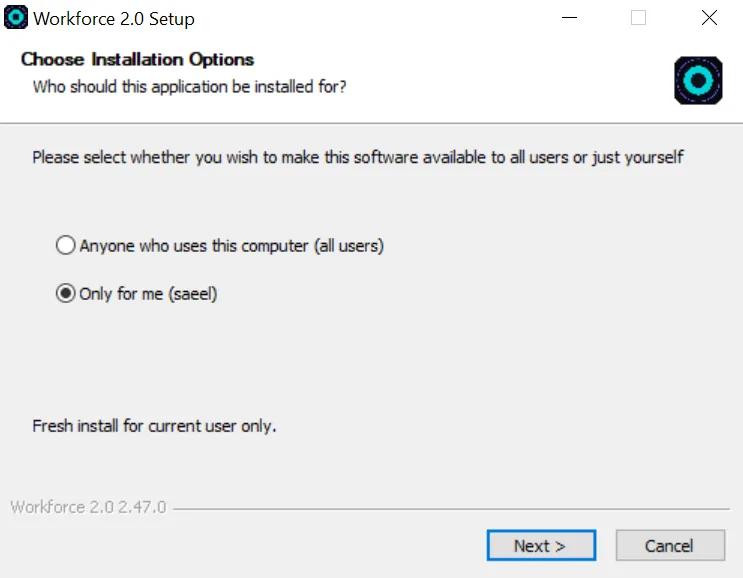
It installs like any other program. No server, no IT person, no monthly minimum, and nothing to cancel if you stop using it.
Version 2.49.42 132 MB released 18 September 2026
SHA-256 6f3e532729d595594edff719edaa23db80d0da1332c3bf9c3f89a024b07cc17b
Or install it from a terminal, in one line:
irm https://workforce.trackmystartup.com/install.ps1 | iex
Every platform
Which machines does it run on?
Windows, Linux and Android today. The Linux build is a single AppImage: download it, make it executable, run it. No package manager, no root, and nothing added to your system.
Version 2.49.37
Installing on Linux
Pick the right one. Most desktops and laptops are Intel/AMD. Run
uname -m — x86_64 means the first file, aarch64 the
second.
Then two commands. Mark it executable and start it:
chmod +x Workforce-2.0-*.AppImage && ./Workforce-2.0-*.AppImage
Or double-click it in your file manager, after ticking
Allow executing file as program in its Properties. Some minimal installs need FUSE
first (sudo apt install libfuse2); if you would rather not, the file also runs
with --appimage-extract-and-run.
It keeps itself in one place. The AppImage is the whole program — delete the file and it is gone.
Is there a Mac or iPhone version?
Both are being built now. Workforce already runs on macOS and on iPhone in our own testing — what is left is Apple's signing and review, which we are working through so the first download you get is one your Mac trusts on sight.
Tell me when they are ready
Leave an email and we will write once, when the Mac and iPhone builds are available.
Needs an endpoint before launch. See open item 2 in the plan: this form has nowhere to post to yet.
One line
Can I install it from the command line?
Yes. Open PowerShell and paste one line. It works out which version is current, downloads it, checks the file against the SHA-256 above, and installs it. Nothing else to answer.
irm https://workforce.trackmystartup.com/install.ps1 | iex
Before you paste anything into a terminal
Read it first. Drop the | iex off the end and the same line prints the
script instead of running it. It is short.
It stops if the file is wrong. What it downloads has to match the SHA-256 published on this page, or nothing gets installed.
It does not ask for administrator rights, because it does not need them. Workforce installs for your user account.
There is no winget package yet.
Setup
What do I need before I start?
A Windows PC or Linux machine, and a free Google key. A key is a password that lets the app use Google's AI on your behalf. You create it in about two minutes, there is no card to enter, and it does not cost anything.
-
Open the key page
Go to aistudio.google.com/apikey and sign in with any Google account. A personal Gmail account works.
-
Click Create API key
Google shows you a long string of letters and numbers. That is the key. In the app's own words: it's free, no card needed.
-
Copy it
Use the copy button next to it. You will not need to remember it or type it out.
-
Paste it into Workforce
On first launch the app asks for it. Paste it in and it checks the key works before moving on, so you find out immediately if something went wrong.
What people worry about, answered
Will Google charge me? No. The free tier does not take a card.
Is there a limit? There is a daily allowance, and everyday use does not reach it. If you do run it out, the app keeps going: signed-in users have their engine work carried on a fallback connection so a job finishes rather than dying halfway through.
Where does the key live? On your machine. It never reaches a web page, and it is not in the download or in our code. More on that →
Day one
What happens in the first ten minutes?
You paste the key, connect the apps you want it to use, and give it one thing to do. You watch it get handed out and come back. Nothing sends anywhere until you say so.
-
It opens on the console
One box to type in, and a sphere to tap if you would rather talk. That is the whole interface to begin with.
-
Connect what you want it to reach
Gmail, Drive, Calendar and the rest take a sign-in. The ones that need no account are already working. You can skip this and do it later.
-
Set how far it can go
Read only, draft but never send, or send. Most people start on draft-only for the first week, which is the sensible way to do it.
-
Ask for one thing
Say it out loud or type it. The assistant either handles it or passes it up, and you watch the work appear as tasks rather than as a spinner.
Three good first asks
“Find me twenty companies near Pune that fit the customers I already have.”
“Read my inbox from this week and tell me what I have been asked to do.”
“What are my three closest competitors charging?”
How does it update?
By itself, when you say yes. It checks at launch and puts an Update button in the menu when there is something new. Updates carry code only, so nothing you have made or connected is touched.
It improves itself. Is that safe?
The version you are running is never touched until you approve a change. It works on a copy, has the result checked, and shows it to you. You promote it or you bin it.
It saves what works
The current version is pinned as the one to fall back to.
It builds a candidate somewhere separate
Not in the version you are using.
The candidate gets checked
It has to pass before you are shown it at all.
You decide
Promote it or discard it. Nothing changes on its own.
And if a new version turns out to be broken
If a promoted version fails to start twice, it puts the old one back by itself. You can also restore any earlier version whenever you want. Crashes are written to a log on your machine so there is something to look at rather than a shrug.
What can it read out of the box?
Word, Excel, PowerPoint, PDF and CSV files go in. PDFs come out, and it can read and update spreadsheets. This is what the tailored CVs and the dashboards are standing on.